The timeline zoom is controlled by your scroll wheel, trackpad gesture sensitivity, and a few CapCut-specific shortcuts — and it’s almost always a hardware input getting misread as a zoom command rather than a scroll command. Once you know which input is triggering it, the fix takes under a minute.
Why It Happens
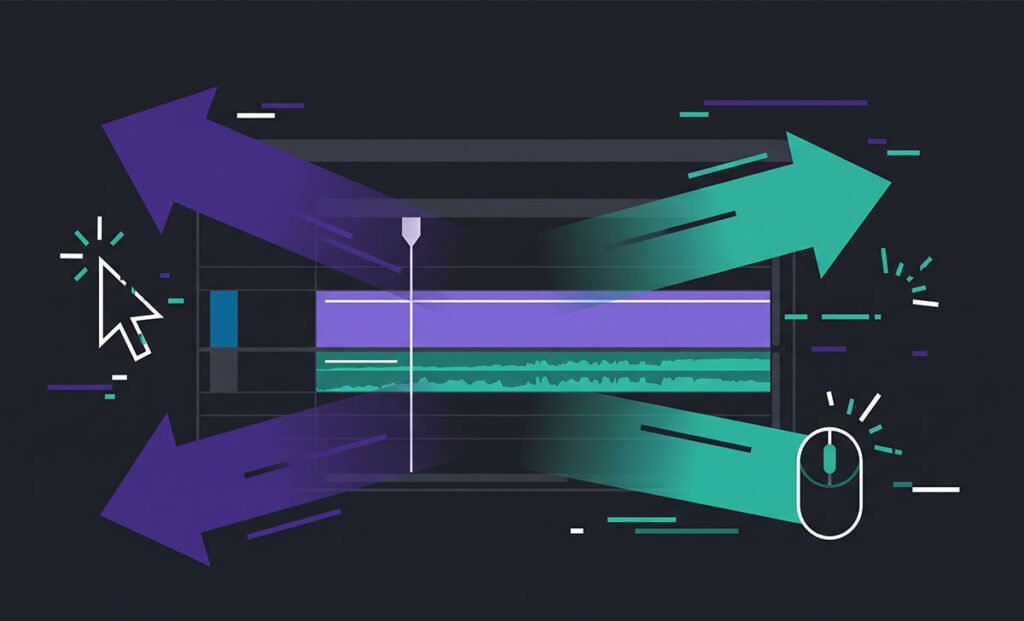
CapCut Desktop maps the scroll wheel to timeline zoom by default when your cursor is over the timeline track area. On a standard mouse, scrolling vertically moves through the timeline horizontally. But if you’re using a trackpad, a two-finger pinch gesture, or a mouse with a tilt wheel, CapCut often interprets the input as a zoom command instead of a scroll.
The second common cause is the Ctrl key. Holding Ctrl while scrolling zooms the timeline in most NLEs including CapCut — if your keyboard or mouse software is remapping a button to Ctrl, or if Ctrl is being held accidentally during a drag action, the zoom triggers without you deliberately activating it.
A third less common cause: if you’re using a Wacom tablet or similar input device, pressure sensitivity or pen tilt can occasionally send errant zoom signals to CapCut’s timeline renderer.
How to Fix It
Step 1 — Check your trackpad gesture settings (Mac)
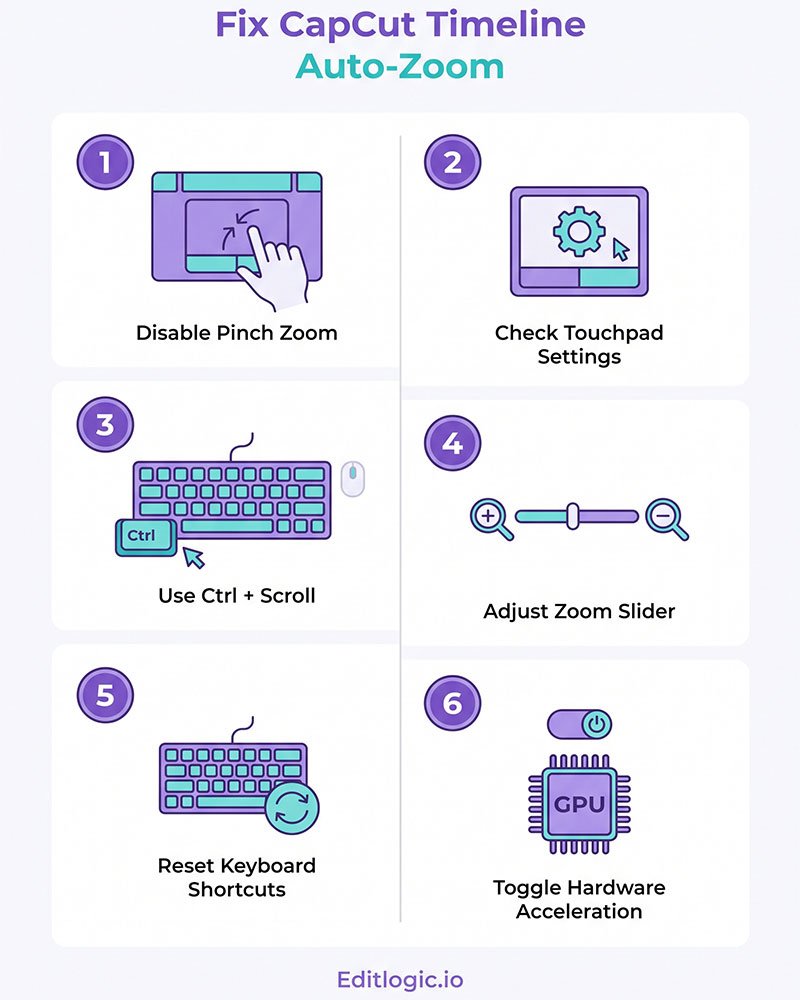
On Mac, go to System Settings → Trackpad → Scroll & Zoom and confirm whether “Smart zoom” or “Pinch to zoom” is enabled. CapCut on Mac receives these gestures directly from the OS and interprets pinch-to-zoom as timeline zoom. Disabling pinch-to-zoom system-wide stops the behaviour in CapCut but also disables it in browsers and other apps. A more targeted fix is to hold your fingers flat on the trackpad rather than pinched when working in the timeline area — or use a mouse instead of the trackpad for timeline work.
Step 2 — Check your trackpad gesture settings (Windows)
On Windows, go to Settings → Bluetooth & devices → Touchpad → Scrolling and zooming and disable Pinch to zoom. This removes the gesture system-wide. If you only want to stop it in CapCut without affecting other apps, there’s no per-app gesture control in Windows — the system-wide toggle is the only option here.
Step 3 — Check for stuck or remapped Ctrl key
Press and release Ctrl deliberately, then move your cursor to the timeline and scroll. If the zoom stops, Ctrl was being held down — either stuck physically, held by a macro key on your keyboard, or being sent by mouse software (Logitech Options, Razer Synapse, etc.). Check your peripheral software for any Ctrl remapping on scroll wheel buttons or side buttons.
Step 4 — Use the timeline zoom control directly instead of scroll
CapCut Desktop has a dedicated zoom slider at the bottom left of the timeline panel — a horizontal bar with a minus and plus button. Dragging this slider controls zoom without involving scroll input at all. If unintended zoom is a persistent problem, using this slider as your primary zoom method bypasses the scroll wheel entirely while you work out the input source.
Step 5 — Reset CapCut’s keyboard shortcuts to default
Go to Menu → Settings → Shortcut Keys and click Restore Default. If a shortcut has been accidentally remapped to a key or button that’s triggering zoom, this clears it. After resetting, test whether the unintended zoom still occurs.
Step 6 — Disable hardware acceleration temporarily to rule out a rendering bug
In rare cases — particularly on AMD GPUs — CapCut’s timeline rendering with hardware acceleration enabled has a documented bug where zoom state gets corrupted during playback, causing the timeline to snap between zoom levels unexpectedly without any deliberate input. Go to Menu → Settings → Performance and uncheck Hardware Encoding and Hardware Decoding. If the unintended zoom stops, this is the cause. Keeping hardware acceleration off is a workaround until CapCut patches the renderer; alternatively, update your GPU drivers first and re-enable it.
FAQ
Why does my CapCut timeline zoom when I scroll with a mouse?
CapCut maps vertical scroll to horizontal timeline navigation by default, but Ctrl + scroll is mapped to zoom. If zoom is triggering on a plain scroll without Ctrl, your mouse driver is likely sending a Ctrl signal alongside the scroll — check your mouse software (Logitech Options, Synapse, etc.) for scroll wheel button assignments.
How do I zoom the CapCut timeline without using the scroll wheel?
Use the zoom slider in the bottom-left corner of the timeline panel. You can also press the plus (+) and minus (−) keys on your keyboard to zoom in and out incrementally, or press Ctrl+Shift+/ to fit the entire timeline into the visible window.
Does CapCut have a setting to lock the timeline zoom level?
No — there’s no zoom lock in CapCut Desktop. The only way to prevent accidental zoom changes is to eliminate the input source causing them, using the steps above.
My CapCut timeline randomly zooms during playback — is that a different problem?
Yes. If zoom changes happen during playback without any keyboard or mouse input, this points to the hardware acceleration rendering bug mentioned in Step 6, or a corrupt project file. Try clearing your CapCut cache first — go to Menu → Settings → Project → Clear Cache — then test playback again. If it continues, disable hardware acceleration.