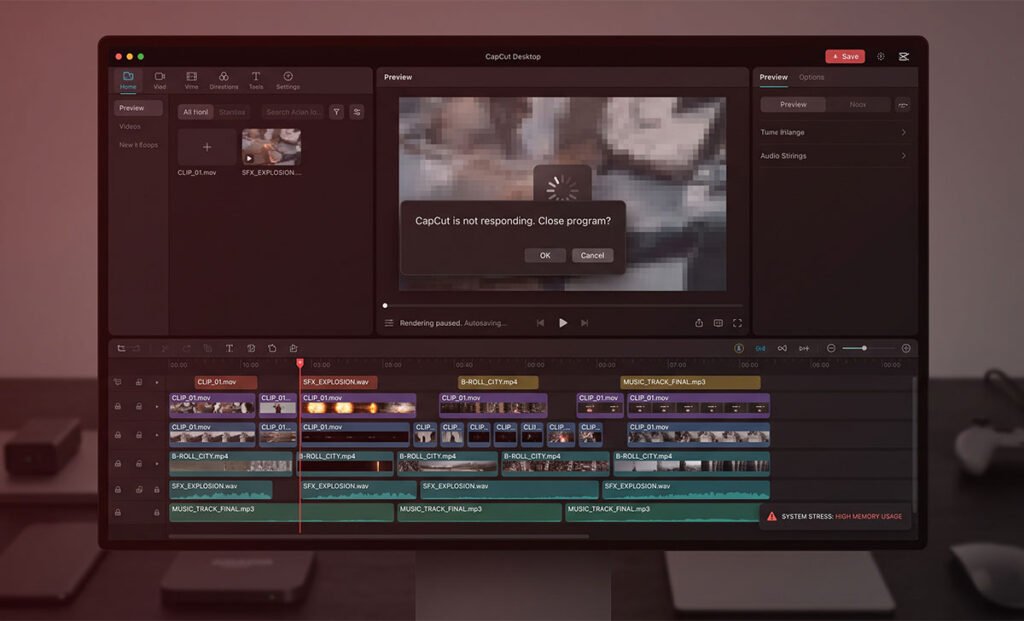
Transition lag in CapCut is almost always a processing bottleneck, not a sign something is broken. The good news is it’s fixable — and usually quickly.
This guide covers why it happens and how to clear it, whether you’re editing on Desktop, Web, or mobile.
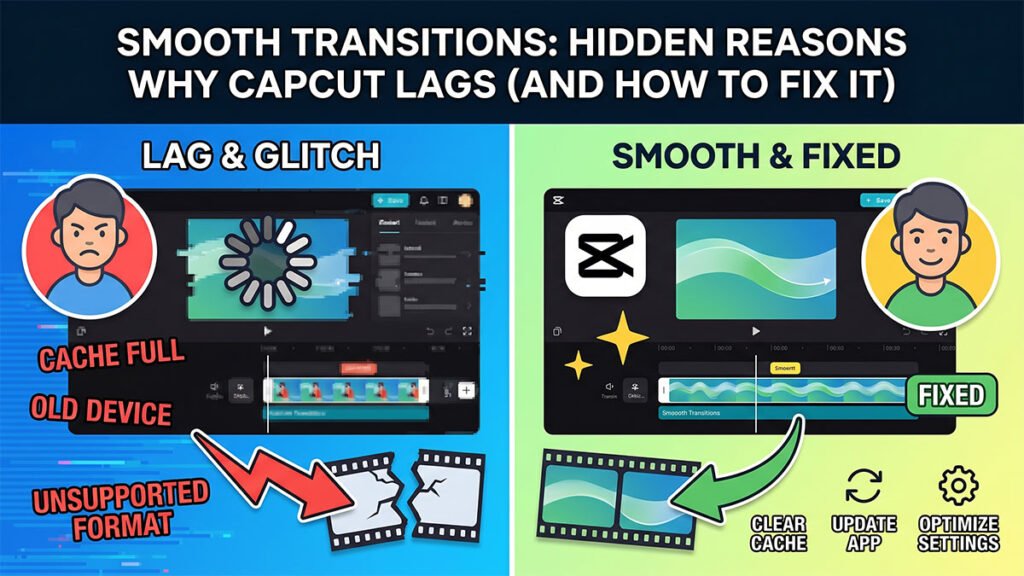
The Hidden Reasons Behind CapCut Transition Lag
Before tweaking your settings, it helps to understand exactly what is choking your timeline. Transition lag usually boils down to five main culprits:
- High-Resolution Timelines (4K or High FPS): Working with 4K footage or 60fps (frames per second) video demands massive processing power. Pushing a transition through heavy files can easily overload your system.
- Too Many Stacked Effects or Layers: If you layer a transition on top of color filters, text overlays, stickers, and keyframe animations, you are asking CapCut to render five things at the exact same millisecond.
- Low Device Performance or Memory: CapCut is highly optimized, but it still relies heavily on your device’s RAM, CPU, and GPU. If your hardware is stretched thin, rendering transitions in real-time drops frames.
- Preview vs. Final Export Disconnect: This is the most common hidden truth—your preview lag is often an illusion. CapCut prioritizes smooth editing over high-fidelity playback in the workspace, meaning a laggy preview often turns out perfectly smooth once exported.
- Software or Browser Limitations: If you are using an outdated version of the app or trying to run the web editor on an unsupported browser, optimization bugs will cause performance dips.
Quick Fixes: Choose Your Platform
Depending on how you use CapCut, the solutions vary. Find your setup below to clean up your timeline and get those buttery-smooth edits back.
How to Fix CapCut Transition Lagging Online (Web Editor)
Web browsers have strict memory limits. If you are editing in your browser, your goal is to free up system resources and reduce the data load.
- Lower Preview Quality: Drop your real-time playback resolution in the editor settings to ease the burden on your internet connection and browser engine.
- Streamline Your Timeline: Temporarily remove heavy overlays or nested effects around the transition until you are finished timing the cut.
- Declutter Your Browser: Close extra tabs (especially RAM-heavy sites like YouTube or Twitch) and shut down background browser processes.
- The Classic Refresh: If the editor starts crawling after an hour of work, save your project and hit refresh to clear the browser’s temporary cache.
- Switch Browsers: CapCut Web runs best on Chromium-based browsers. Stick to Google Chrome or Microsoft Edge for maximum compatibility.
How to Fix CapCut Transition Lagging on PC
The desktop version of CapCut is incredibly powerful, but heavy desktop projects can still bog down your hardware.
- Kill Background Apps: Close memory-hogging software like Photoshop, Discord, or games before you launch CapCut.
- Turn on Hardware Acceleration: Go into CapCut’s settings and ensure Hardware Acceleration is checked. This forces your dedicated graphics card (GPU) to handle the heavy lifting instead of relying solely on your processor.
- Modify Preview Resolution: Use the performance settings to lower your timeline playback quality. Remember, this won’t affect your final video quality!
- Minimize Stacked Effects: Simplify your tracks. Avoid stacking multiple complex animations right at the cut point of your transition.
- Test Export Early: If a transition looks choppy, export a 5-second snippet of just that section. If the exported file looks perfect, you can confidently ignore the preview lag and keep editing.
How to Fix CapCut Transition Lagging on Mobile (iOS & Android)
Smartphones handle aggressive thermal throttling, meaning your phone will intentionally slow down if it gets too hot or runs low on memory.
- Clear RAM: Force-close all other apps running in your phone’s background before opening CapCut.
- Space Out Your Effects: Avoid clustering too many stickers, filters, and audio effects directly over the transition marker.
- Give Your Phone a Reboot: If you are tackling a massive project, restart your device first. This flushes system caches and cools down the processor.
- Edit in 1080p, Not 4K: Set your project timeline to 1080p while editing to massively reduce processing strain. You can always upscale to a higher resolution when you hit the final export button.
- Keep the App Updated: Head to the App Store or Google Play Store regularly. CapCut frequently pushes out optimization patches that specifically fix timeline lag and rendering bugs.