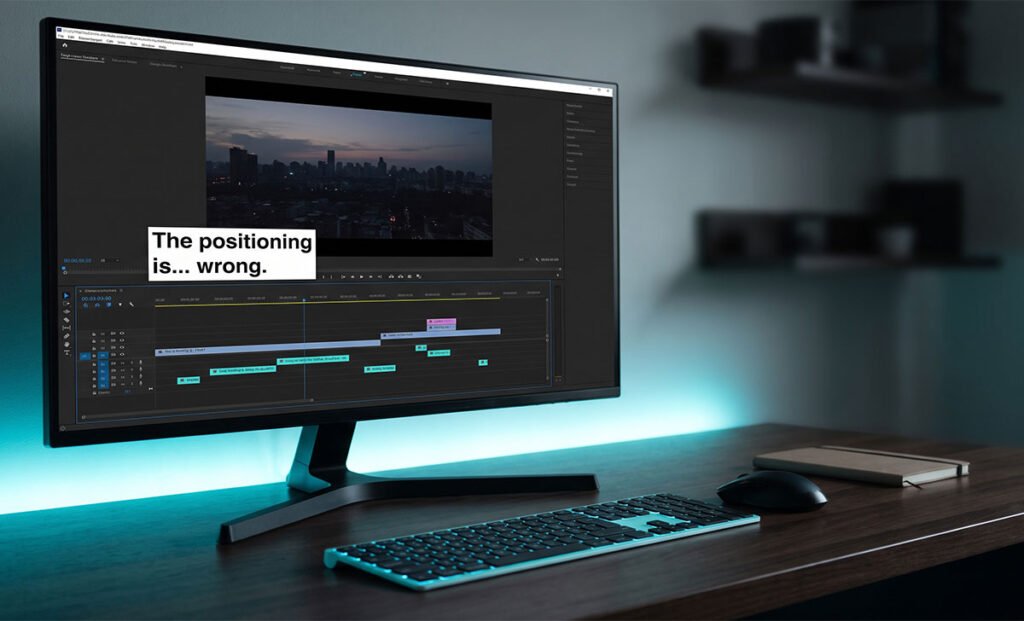
Captions that sit perfectly in the preview window but land somewhere else entirely once the video is exported is one of the most common CapCut complaints — and it’s almost never random. It comes down to a mismatch between what the editor is showing you and what the renderer actually outputs, usually triggered by resolution, aspect ratio, or display-scaling differences.
What’s Actually Causing the Shift
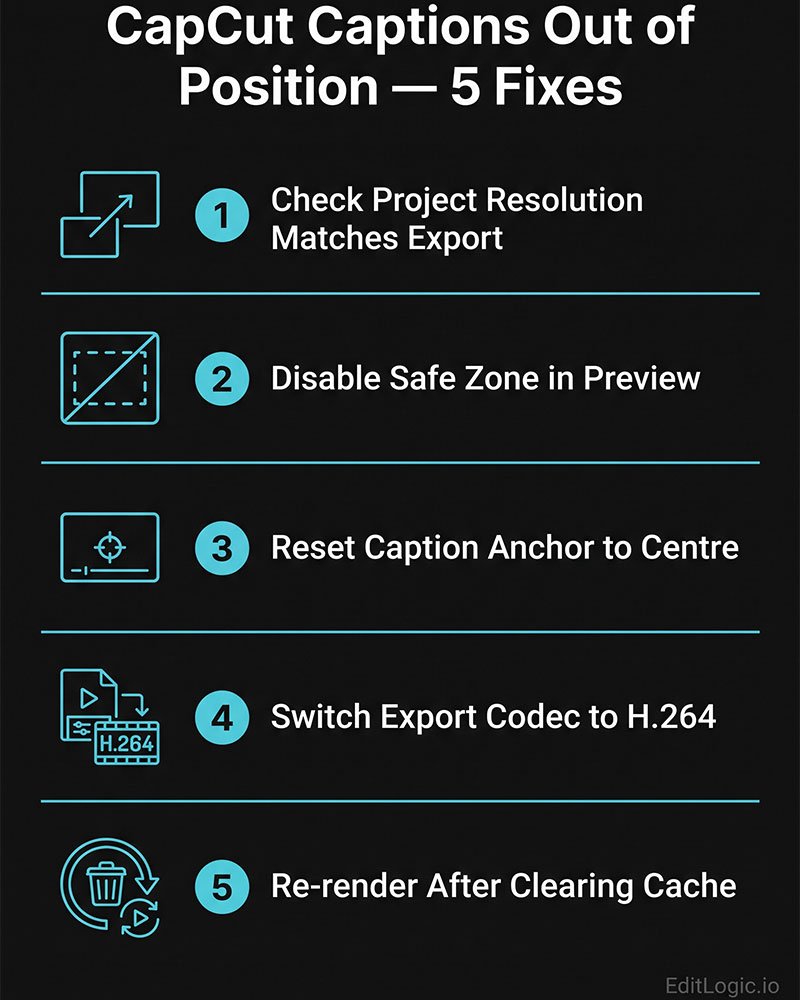
1. Export resolution or aspect ratio doesn’t match the project canvas. If your project is set to one aspect ratio (say, 9:16) but you export at a different resolution or let CapCut auto-crop to fit a platform preset, captions anchored to the original canvas can shift relative to the new frame edges.
2. Display scaling (DPI) mismatches on desktop. On Windows in particular, if your screen scaling is set above 100%, CapCut’s editor can render caption positions slightly differently than the final encode —Windows display scaling above 100% has been shown to affect how CapCut renders text alignment on certain system configurations.
3. Caption box size vs. text length. When a caption box is too small for the amount of text in it, CapCut may reflow or reposition the text differently in the final render than it appeared in the live preview.
4. Preview vs. export rendering aren’t identical. CapCut’s real-time preview and its final export pass use different rendering pipelines — CapCut’s preview and export do not always render captions the same way, and flicker or positional shifts after export can stem from hardware encoding, codec issues, frame rate mismatches, or transparency conflicts.
5. Batch positioning isn’t supported. If you’ve repositioned some captions manually and used “Apply to all” for styling, position isn’t always included — CapCut currently does not support batch editing of text position, style, or size when adding text through the standard text or caption tools, so individually-moved captions can behave inconsistently across a project.
6. Safe-zone drift on vertical video. Multi-line captions placed near the bottom of the frame can shift into or out of platform UI zones (like TikTok’s caption bar or Reels’ controls) once the video is uploaded and re-compressed, even if the export itself looked fine.
Getting Your Captions to Export Where You Placed Them
Step 1 — Match your export settings to your project canvas
Before exporting, confirm the export resolution and aspect ratio in the export dialog exactly match your project settings. Avoid using a platform “auto-fit” or crop preset unless you’ve already designed your captions around it — mismatches here are the single most common cause of position drift.
Step 2 — Reset Windows display scaling to 100% (Desktop, Windows)
Right-click the desktop → Display settings Windows display scaling settings → under Scale & layout, set Scale to 100%. Then go to Advanced scaling settings and make sure “Let Windows try to fix apps so they’re not blurry” is turned on. Sign out and back in, then re-check your caption positions in the editor before exporting.
Step 3 — Resize the caption text box manually
Select the caption, then manually drag the text box handles so there’s margin around the text rather than relying on auto-fit. A text box that’s too tight for the caption content is more likely to reposition itself unpredictably during the final render.
Step 4 — Avoid mixing manual position changes with “Apply to all”
If you’ve moved individual captions, don’t rely on a global “apply to all” style pass to keep that positioning intact. Reposition captions individually after any global style changes, not before.
Step 5 — Export a short test clip first
Rather than exporting a full-length video, export a 5–10 second clip containing a caption and check the actual output file (not the in-editor preview) for position accuracy. This isolates whether the issue is render-related or timeline-related before you commit to a full export. Keep these export quality settings in mind.
Step 6 — Check for platform re-compression after upload
If captions look correct in the exported file but shift after uploading to TikTok, Instagram, or YouTube, the issue is happening during the platform’s own re-encode, not in CapCut. Keep captions away from the outer 10–12% margin of the frame to avoid UI overlap, and export at standard platform resolutions (1080×1920 for vertical, 30fps, H.264) to minimize how much the platform has to re-process your file. YouTube’s recommended export specifications
Step 7 — Update CapCut and clear cache
Go to Menu → Settings → Project → Clear Cache, then check for app updates. Rendering bugs tied to caption positioning are occasionally patched between versions, and a stale cache can carry over corrupted layout data from a previous project. How to clear CapCut cache safely?
Common Questions About Caption Position After Export
Why do my captions look fine in the CapCut preview but move after I export?
The live editor preview and the final export use different rendering passes. Resolution mismatches, display scaling, and text box sizing can all cause the two to diverge, even when nothing in the timeline itself has changed.
Does changing my export resolution affect caption position?
Yes. Captions are positioned relative to the project canvas. If your export resolution or aspect ratio doesn’t match the canvas the captions were placed on, their position relative to the frame can shift.
I only see this on Windows — is it a scaling issue?
It can be. Display scaling above 100% has been linked to caption alignment problems on some Windows systems, so setting scaling to 100% and testing again is a reasonable first step before assuming it’s a CapCut bug.
Can I reposition all my captions at once?
Not fully — CapCut does not currently support batch editing of caption position. Position changes generally need to be made caption-by-caption.
My captions are fine in the exported file but shift after I post to TikTok/Instagram — is that CapCut’s fault?
No — that’s platform re-compression, not CapCut. Keep text within the safe zone and export at standard platform specs to reduce how much the shift.