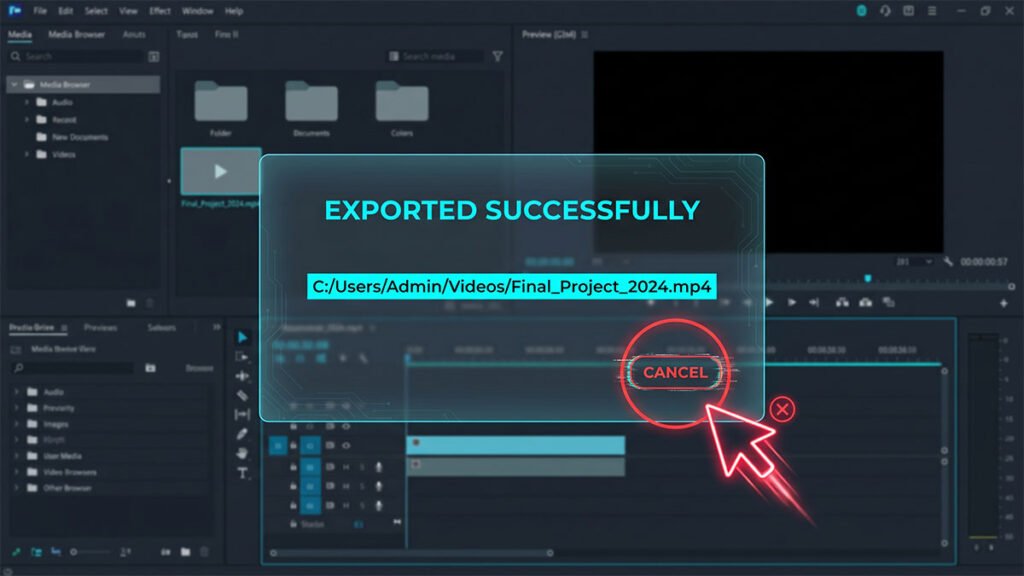
CapCut finishes the export, plays the success sound, and then does nothing. The post-export popup won’t close — the X, Cancel, and Close buttons are all unresponsive. Your timeline is visible in the background but completely locked.
This guide covers how to close the frozen popup without losing your project.
Why Does the CapCut Export Popup Get Stuck?
When CapCut finishes writing your final MP4 or MOV file to your hard drive, it triggers a final UI routine: it releases the background rendering engine and refreshes the user interface to hand control back to the timeline.
If the popup won’t close, it usually points to one of three technical bottlenecks:
- Background File Lock: CapCut is still technically finishing the “multiplexing” phase (stitching your separate audio and video render tracks together) or uploading a background copy to the cloud/TikTok, causing the UI buttons to temporarily freeze.
- UI Thread Crash: The software successfully finished the video but the graphical user interface layer crashed, meaning it’s no longer registering mouse clicks on specific buttons.
- Low System Resources: If your PC or Mac ran out of available RAM or VRAM during the heavy export process, your operating system may prioritize keeping the application open over processing input commands.
Here is the step-by-step troubleshooting workflow to resolve the issue.
Step 1: Verify the Video File Actually Exported Safely
Before doing anything drastic like force-closing the application, you need to ensure your rendered video isn’t corrupted.
- Minimize CapCut (or press
Win + Don Windows /Cmd + Hon Mac to view your desktop). - Open your system’s File Explorer or Finder and navigate to your designated CapCut export folder.
- Locate your newly exported video file.
- Double-click to play it. Ensure the video plays completely through to the end with full audio.
If the video plays perfectly, your creative work is safe on your hard drive, and you can proceed to safely kill the frozen software window.
Step 2: Use Keyboard Escape Triggers
Sometimes the mouse pointer stops interacting with CapCut’s graphical buttons, but the software is still listening to keyboard commands. Before closing the app entirely, try these quick keystrokes to dismiss the popup window:
- The Escape Key: Press
Escon your keyboard 2–3 times. In many CapCut versions, this acts as a global command to close active overlay dialog boxes. - The Enter Key: Sometimes a hidden, transparent confirmation box is layered on top of the screen. Pressing
EnterorSpacebarcan occasionally trigger the default “OK” or “Close” action.
Step 3: Use Task Manager or Force Quit (The Safe Way)
If the keyboard tricks fail and the popup remains frozen, the interface thread is dead. Because your video is already safely saved (verified in Step 1), you can safely force-close CapCut without ruining your source timeline files.
For users unfamiliar with managing system lockups directly through the OS layer, you can consult the official Microsoft Support guide on using Task Manager to safely monitor and terminate unresponsive background processes. CapCut autosaves your project edits constantly, so your latest timeline data is preserved.
On Windows:
- Press
Ctrl + Shift + Escto launch the Task Manager. - Locate CapCut under the Apps list.
- Right-click on CapCut and select End Task.
- Relaunch CapCut. It will open directly to your project selection window, and you can jump back into your timeline immediately.
On Mac:
- Press
Cmd + Option + Escto open the Force Quit Applications window. - Select CapCut from the list.
- Click the blue Force Quit button.
- Re-open the app to resume editing.
Step 4: How to Prevent the Popup from Freezing in the Future
If this issue happens to you frequently, your system is likely hitting a resource or software version bottleneck. Run through these structural optimization steps to stop it from happening again:
1. Turn Off “Auto-Upload to TikTok”
On the export settings box, ensure that any options to automatically share or upload the clip directly to TikTok or YouTube are disabled. If CapCut attempts to establish an internet connection to sync your account during the export wrap-up and hits a minor network hiccup, it will freeze the entire popup window indefinitely. Always export locally first, then upload manually through your browser.
2. Flush Your Clogged Cache Files
Accumulated temporary render data can cause the software’s UI thread to stumble. Clear it out safely:
- On the CapCut homepage interface, click the Settings gear icon in the top-right corner and choose Settings.
- Under the Project tab, look across from Cache Size.
- Click the Delete/Trash Can icon to wipe out cached pre-render files. (Note: This will not delete your raw footage or your timelines—it only clears temporary preview files).
3. Enable Hardware GPU Acceleration
Make sure your graphics card is doing the heavy lifting during the export wrap-up phase:
- Go back into CapCut Settings.
- Navigate to the Performance tab.
- Ensure Modify hardware encoding and Hardware acceleration checkboxes are ticked. This keeps your system resources stable, reducing UI crashes right at 100% completion.