Professional voiceover has a real cost — decent microphones, acoustic treatment, or hiring someone to record. CapCut’s Text-to-Speech tool cuts all of that out. Type your script, pick a voice, and you have a usable voiceover in seconds.
This guide covers the best voices, how to get natural-sounding results, and the full workflow for both Desktop and Web.
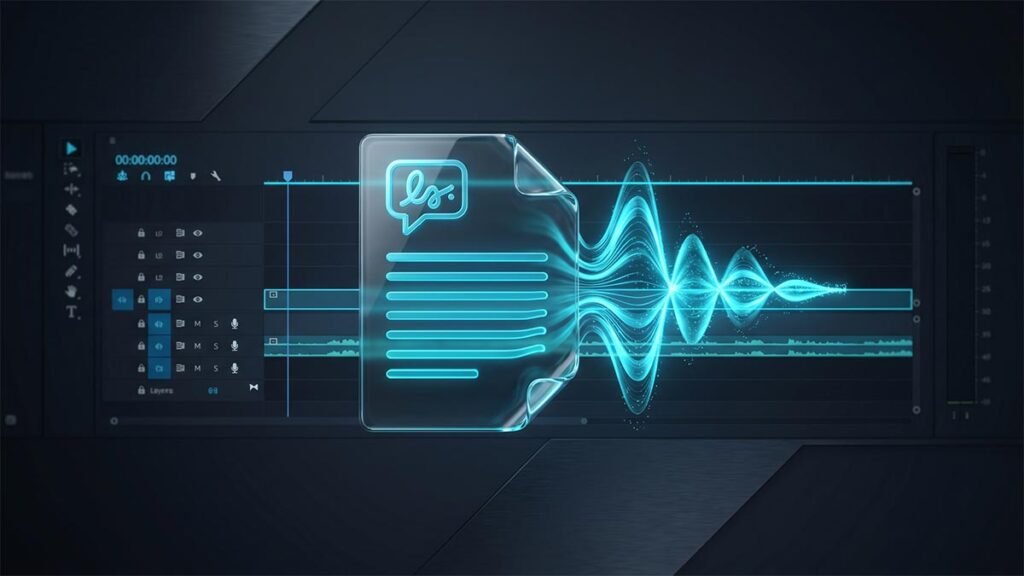
Discover the fundamental advantages of CapCut’s AI voice generator, its practical applications, and how to use it on the Web and Desktop efficiently and effectively.
Key Benefits of Using CapCut’s Free Text-to-Speech Tool
1. Create AI Voiceovers Faster and Easier
CapCut drastically simplifies the voice clone and audio creation process. Instead of scheduling recording sessions and dealing with multiple takes, you can generate clean audio from raw text in just a few clicks.
- Cost Efficiency: Eliminates the need for pricey studio gear or hiring external voice talent.
- Workflow Optimization: Reduces post-editing cycles by outputting flawless, de-noised vocal tracks immediately.
- Agility: Fix a script typo in seconds by re-typing the sentence rather than setting up your microphone all over again.
2. Generate Multi-Version Voices Instantly
Different projects require different emotional delivery. CapCut’s text-to-voice engine lets you generate multiple versions of the same script seamlessly.
- Custom Dynamic Settings: Easily adjust the tone, emotional style, and playback speed to align perfectly with your visual pacing.
- A/B Testing: Produce various styles (e.g., energetic for TikTok, professional for LinkedIn) to find exactly what resonates with your target demographic.
3. Build a Unique, Recognizable Brand Sound
Consistency breeds brand authority. With CapCut’s advanced voice customization tools, you don’t have to settle for generic robot voices.
- Identity Building: Fine-tune specific vocal pitches and characteristics to establish a distinct sonic identity.
- Audience Connection: By utilizing the same tailored tone across your channel’s content grid, your audience will instantly recognize your brand’s personality within the first three seconds of playback.
Best Use Cases for CapCut’s Text-to-Speech Converter
Video Creators & Social Media Enthusiasts
For content creators across TikTok, YouTube Shorts, and Instagram Reels, speed is everything. Combining CapCut’s AI text-to-speech generator with tools like the AI text remover allows you to strip out original distracting audio and overlay clean, highly-engaging narration that keeps retention rates high.
Ads & Marketing Promotions
Attention spans are shorter than ever. Marketers can pair the AI voice generator with AI character generators to build visually striking, professional ad narratives. It is perfect for rapid prototyping of promotional assets, product showcases, and scalable localized video campaigns.
E-Learning & Presentations
Educational design requires crystal-clear articulation. Teachers, corporate trainers, and digital presenters can convert lengthy written scripts into high-quality tutorial narration, making online courses more engaging and accessible for diverse learning styles.
How to Convert Text to Speech in CapCut Desktop
If you prefer editing locally with maximum hardware performance, follow this exact optimization workflow on CapCut Desktop:
Step 1: Upload Your Video Assets
- Launch CapCut Desktop on your computer.
- Click the “Create project” button on the main dashboard.
- Click the “Import” button in the media panel to upload your video clips or images from your local hard drive. Drag them onto your timeline track.
Step 2: Convert Your Text to Speech
- Navigate to the top-left menu and click Text > Add Text (Default Text).
- Type or paste your custom script into the text box. (Pro Tip: You can also use the built-in AI writer tool to generate or polish your copy directly inside the interface!)
- With the text box selected on your timeline, open the “Text to speech” panel located in the top-right options menu.
- Browse through the diverse library of AI voices, select the tone that fits your project, and click “Generate speech”. CapCut will render a dedicated audio track right below your text layer.
Step 3: Export & Share
- Review your timeline to ensure the audio matches your visual cut.
- Click the blue Export button in the upper-right corner.
- Configure your target export settings (Resolution, Frame Rate, Codec, and Bitrate).
- Click Export again to save the final video file cleanly to your local drive.
How to Convert Text to Speech in CapCut Online (Web Editor)
For those who want to create on the fly without installing software, CapCut’s cloud-based web editor offers a seamless cloud ecosystem:
Step 1: Open CapCut Web and Access the AI Suite
- Head over to your browser, log into CapCut Web, and head to the workspace dashboard.
- Click on the “AI tools” category icon from the left navigation pane.
- Select the “Text to speech” standalone application from the available cloud tools layout.
Step 2: Input Text and Customize Voice Style
- Type or paste your final script into the provided input field.
- Dive into CapCut’s extensive AI voice library to select your preferred language, gender tone, and specific vocal profile (e.g., narrative, commercial, cute, etc.) to optimize engagement.
Step 3: Preview, Generate, and Apply
- Use the built-in player to listen to a 5-second instant preview of your selected voice.
- Once satisfied, click the “Generate” button to compile the complete vocal script.
- You can now download the raw audio file directly to your system or immediately push it into an open online multi-track video editing project.
Pro-Editor Workflow: Once CapCut’s AI speech generator finishes rendering your flawless multi-version vocal tracks, the next step is providing clear accessibility overlays for social media algorithms. If the software throws a rendering glitch when trying to parse your newly generated audio, use our step-by-step walkthrough to fix CapCut subtitles not generating so your workflow stays completely on schedule.